Posts

Showing posts with the label Apple Service Center

How to back up with Apple device with iCloud Backup?

Image
Well, apple device is little complicated if you are new to it. The most annoying thing in the apple is that it provides you limited storage space. At present, the company starts making their device above 16 GB space after hearing the storage problem from their users. But to treat that, it also provides free 5GB iCloud storage space to its every user so that, they can save their credentials there. If you back up your iPhone, iPad or iPod touch, you will have a copy your data to use in case your device is ever replaced, lost, or damaged. With iCloud, you can access your data anywhere and if in case your device is lost, still you can access your data or credentials from any device. Below, you can backup your Apple device with iCloud – ·        Firstly, connect your device with the strong Wi-Fi connection, so that there is no bar in the coming process. ·        Now, tap on the setting icon and navigate to your name a...

The Solution for Apple Mac not turning on.

Image
Isn’t your Mac getting a start? Whatever is the reason behind this issue, here we have come up with simple steps to solve this problem. Check if it gets the start Press the power button on your Mac system, check if it creates a startup sound or you hear any fan or drive noise. If it doesn’t work at all, then follow the given steps: ·        Check the Power connection Make sure that your Apple Mac is powered on and it is plugged in correctly. Be sure that the battery in not dead and if it needs charging, give it  sometime to charge it. ·        Use another power cable or adapter There may be a fault in the power cable like physical damage or broken form somewhere. Try connecting it with another power cable and see if it resolves the issue. If there was a power cut, it may be possible that power adapter of your Mac has been damaged. You may require replacing it if this is the actual problem. ...

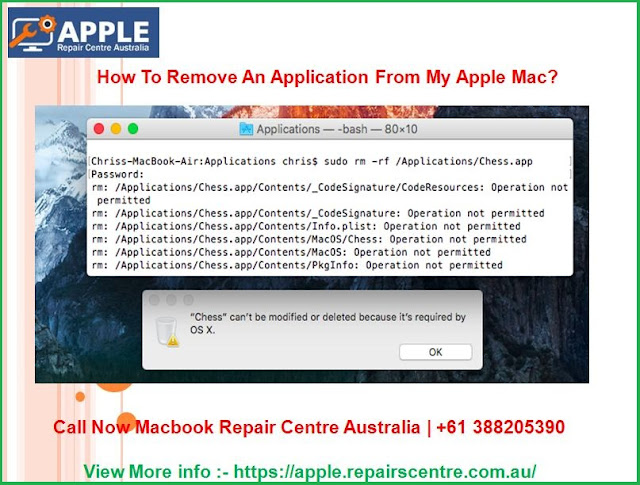
How To Remove An Application From My Apple Mac?

Image
If you are a new user of Apple Mac system then you may find it difficult to remove software as the process is completely different from Windows PC . However, it is very easier than from Windows OS, have a look: From the Finder : Open the Finder window and move to your Applications folder. It is easily accessible through the Favorites sidebar by default. If you can’t find it then pop open Spotlight and then search for “Application folder”. Now, find the application which you wish to remove.  Please note that the user may require locating the Application folder to find the software which is to be deleted. Once the software is found, drag its icon to the Trash folder in the Dock. If Mac asks you to enter the username and password, enter the same to confirm the uninstallation of the app. The Apple will move the app to the Trash, but if you change your mind or mistakenly moved the wrong icon of the software then it can be recovered from the Trash folder. However, to remove...

How to Set up ‘Find My iPhone’ on all your Apple devices?

Image
Don’t know what to do and how to recover your device back when it is lost? Then you should learn how to set up the feature of Find my iPhone to get your device back. So after setting this up whenever your device is lost, you can use this feature to help you get it back as it helps in locating and protecting your Apple device. What you will have to do after setting this up when your device gets lost or stolen is just log in to iCloud.com or via Find My iPhone app see the Apple device on a map. Now you can either play a sound to ring it and help you find it or else you can use the lost mode to lock it and track it. In case you know that the chances of recovering your device are low then you can remotely erase all the personal information. Set up Find my Mac: ·         Open the Apple menu. ·         Go to system preferences and then open iCloud. ·         Tick the checkb...

What if your Apple device shows an error when creating an iCloud backup?

Image
Apple is the most secure and safe software that you can trust upon blindly. Recently, Apple has become the trillion company, and now Apple is worth $1 trillion. When you want to buy a gadget which has a good market reputation and provide high security for your data, then you can go for the Apple gadgets. They are stylish and have advanced features that you find in any gadget. You can create a backup and secure your data like images, documents, videos and much more. It has an application called iCloud where you can back up your data, it gives you 5GB data storage space free and extendable space, for that user has to subscribe.  If your device is not creating a backup and showing you an error dialogue, then you don’t need to panic, we will guide you to solve this issue.         Go to the settings of your device and tap on your name,         Then go to iCloud and then iCloud Backup.         If the problem is...

Method To Clean The Apple MacBook In An Easiest Manner

Image
Cleaning of your MacBook should be done weekly to avoid any wrong operation to take place. If the device on which you are working is clean and looks good, then you don’t feel any irritation and also enjoy working on it. This blog will help you in learning how to clean the MacBook in an accurate way. 1-     First of all, you should have cleaning tools for computer cleaning. If you don’t have it then, buy it from the genuine shop as applying wrong products could harm the parts for the system. You don’t have to use any liquid like abrasives, cleansers with hydrogen, and aerosol sprays. Use only lint-free clothes that are soft and clean. Don’t use textured cloth. 2-   Power off the Mac Book and then start cleaning process. If you clean while the system is on then your opened applications might get compromised or some setting might get changed accidentally on your PC. Don’t put it into sleep mode, just shut it off completely. 3-   I...